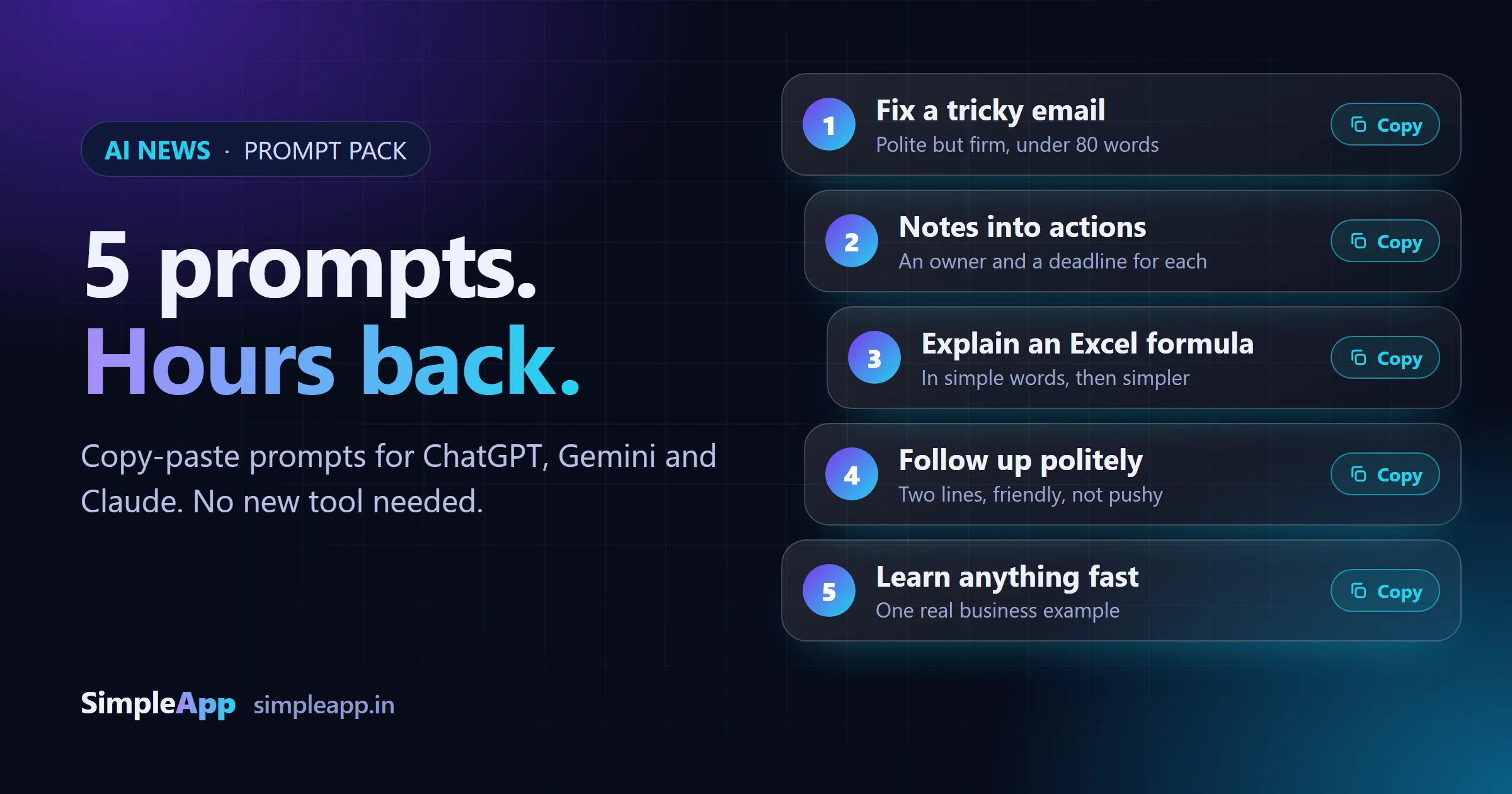
No new tool this time. Most people already have ChatGPT, Gemini, Claude or Copilot open in a tab. The problem is that they do not know what to type, so they type something vague and get a vague answer.
Below are five prompts you can copy and use today. Each one solves a small, boring job that eats time every week: awkward emails, messy notes, confusing spreadsheets, slow replies and new topics. Use the copy buttons, then paste your own text under the prompt.
Last updated: 11 October 2026. These prompts work in any mainstream AI chat tool. Results vary from tool to tool and from day to day, so always read what comes back before you use it.
The short version
- Prompts are instructions, not magic. A clear task, a limit (such as "under 80 words") and a tone get you most of the way.
- Paste your own text under the prompt. The AI cannot fix an email or a formula it cannot see.
- Never paste anything confidential, and always check the answer before you send or act on it.
The prompt pack
1. Fix a tricky email
When to use it: you have written something sharp, vague or too long, and you do not want to start a fight.
Paste the prompt, then your draft below it. The "under 80 words" limit does a lot of work: short emails are clearer and more likely to be read.
Make it better: add who the reader is and what you want them to do, for example "The reader is a supplier who is two weeks late. I want a new delivery date by Friday."
2. Turn messy notes into actions
When to use it: after a call or meeting, when your notes are a jumble of half sentences.
The prompt asks for an owner and a deadline for each action. That is the part most meeting notes miss, and the part that decides whether anything gets done.
Make it better: give the names of the people in the meeting, and say today's date so the AI can turn "next week" into a real deadline. If it guesses an owner or date you did not mention, correct it before you share the list.
3. Understand any Excel formula
When to use it: you have inherited a spreadsheet with a long formula and nobody remembers how it works.
Paste the formula after the prompt. You get a plain-language explanation first, then a simpler version to try. Test the simpler version on a copy of your sheet and compare the results before you replace anything.
Make it better: say which tool you use (Excel, Google Sheets) and what the columns contain. A formula only makes sense in context.
4. Follow up without sounding desperate
When to use it: a client or lead has gone quiet for a week, and you do not want to nag.
Two lines is the point. A short, friendly message is easy to answer, and an easy answer is what you are after.
Make it better: mention what you last discussed and give one simple next step, such as "Shall I hold Thursday for you?"
5. Learn anything fast
When to use it: you need to understand a new topic before a meeting, such as GST changes, a new software term or a competitor's business model.
The phrase "like I am new to it" keeps the answer free of jargon, and the real business example makes it stick.
Make it better: follow up with "Now quiz me with three questions" to check that you understood. If the topic matters for money, law or health, confirm the facts with an official source.
How to make any prompt better
Once you are comfortable with these five, you can improve almost any prompt with five small additions:
- Say who you are and who it is for. "I run a small repair shop" gives better answers than nothing.
- State the goal. What should the reader do after reading?
- Set limits. Word count, number of bullet points and tone all help.
- Give an example of what good looks like, if you have one.
- Ask for a check. "List anything you were unsure about" makes weak spots visible.
Keep your data safe
- Do not paste passwords, bank details, customer personal data, contracts or anything covered by an NDA into a public AI tool.
- Remove names and numbers where you can, and use placeholders such as "Client A".
- Check your tool's privacy settings. Business and paid plans often handle data differently from free ones, so read what yours does with your chats.
- Read the output. AI can sound confident and still be wrong, especially with numbers, dates and names.
Make it a team habit
Prompts are most useful when everyone uses the good ones. Try this for a month:
- Save the best prompts in one shared document, with a line on when to use each.
- Pick one owner who adds new ones and removes the ones that do not work.
- Track the time saved on one task, such as writing follow-ups, before and after.
When a prompt is not enough
If your team pastes the same kind of text into an AI every day, such as meeting notes, enquiries or support emails, the next step is to build it into your tools: notes that become tasks automatically, or enquiries that arrive already sorted and summarised. That is where custom automation pays off.
How SimpleApp can help
We build AI-powered applications and business automations that turn your repeated prompts into tools your team can use in one click, with human approval steps and clear logs. See also our earlier guide on why AI output needs checking, or ask for a free quote.